Motor GUI
Motor GUI is Source Robotics' tool for its drivers and for the grippers built on them: a page in the browser that reaches the hardware through the browser's serial port access, so there is nothing to install. With the CANvas adapter on the gripper's CAN bus it calibrates and activates the gripper, opens and closes it, shows its state and plots its position and current. It is the recommended tool for the first setup and for testing; everything it does is one CAN message, so what you learn here carries over to Python and the other interfaces.
The gripper GUI is legacy
The earlier SSG-gripper-GUI, a Python program with a Windows build, still works with both grippers but is not developed further. Use Motor GUI.
What you need
- A Chromium-based browser: Chrome, Edge, Brave or Opera. The serial port access Motor GUI relies on (Web Serial) is not in Firefox or Safari.
- The CANvas adapter in a USB port and on the gripper's CAN bus, with the bus terminated (CAN termination), and the gripper powered.
- Nothing on the gripper itself: a bought gripper is ready. The browser's port access and the adapter's installation are described on the STEPFOC site, Motor GUI.
Connecting
- Open motorgui.com. In the connection bar choose CAN (slcan) and the bitrate 1 Mbit/s, then connect: the browser asks which serial port, pick the CANvas adapter.
- Choose the gripper's node in the node picker: its CAN ID, 0 unless you changed it. Switch the bar from Motor to Gripper.
- The gripper panel fills in as soon as the gripper's feedback arrives: calibrated or not, activated or not, the position, the current and the errors. While it says that it is waiting for feedback, check the node ID, the power and that the driver is in gripper mode.
The panel works with one gripper at a time; to work with another on the same bus, pick its node. The Motor side of the switch shows the same driver as a motor, which the gripper does not need.
Check
The gripper panel shows the gripper's position and current, and Not calibrated after a power-up. If the browser's port list does not show the adapter, see the notes for your system below; if the panel keeps waiting for feedback, step 3 and Troubleshooting.
The adapter's port on your system
The CANvas adapter appears in Device Manager under Ports (COM & LPT) as a COM port, and the browser's port list shows it. Close any other program that holds the port, a Python script or another browser tab: the connection fails at once while it is open elsewhere.
The browser opens the port only if your user may. Add yourself to the dialout group once, then log out and
in again:
Nothing to install. A browser installed with Homebrew or from the App Store may need USB access: Motor GUI's own guide points to System Settings, Privacy & Security.
Try it without a gripper
Open Motor GUI, choose Mock CAN (demo) and Connect, then switch to Gripper. The whole panel runs in the browser without an adapter or a gripper. The mock device identifies itself as SSG-48; MSG uses the same controls.
The gripper panel
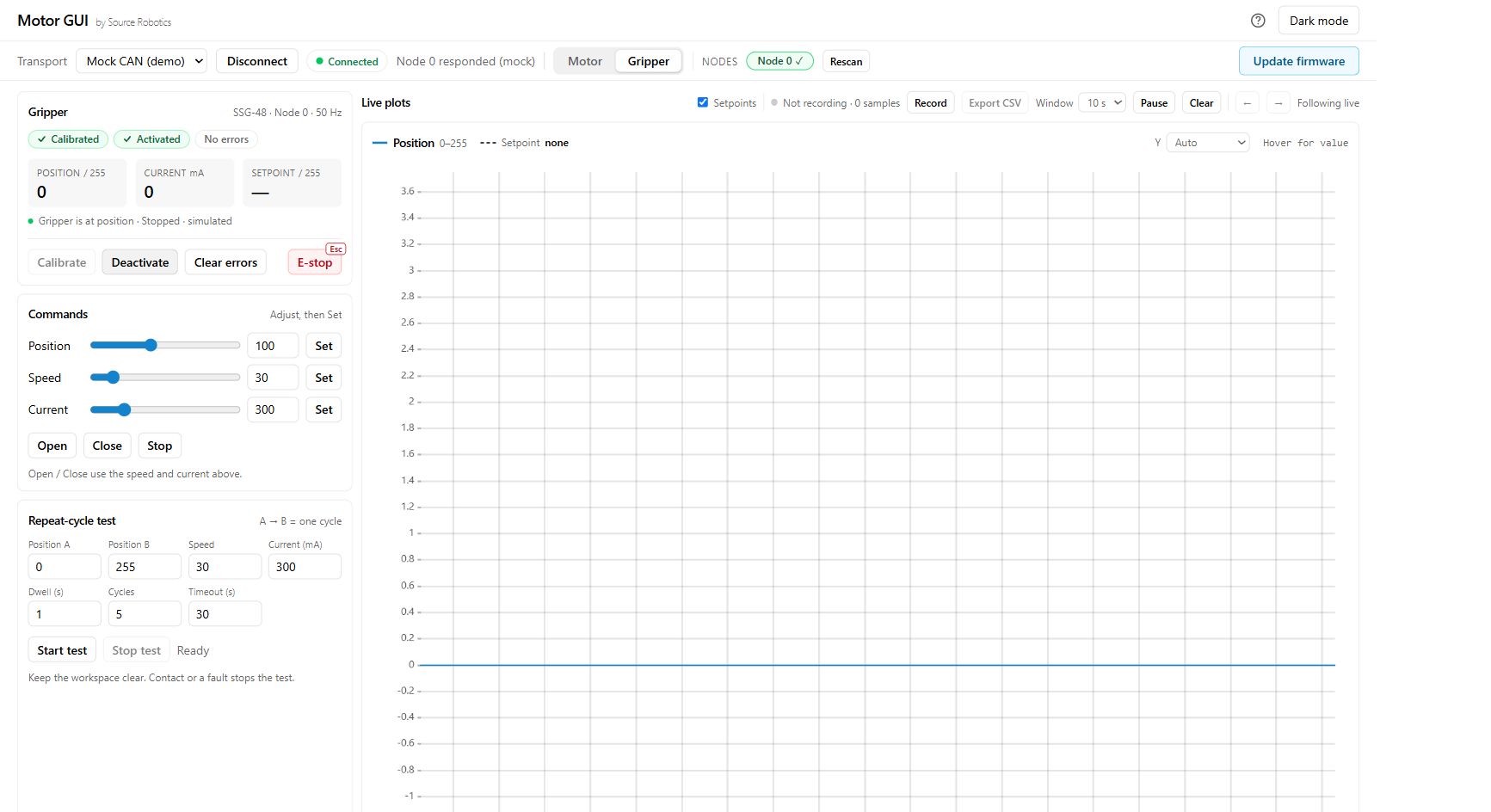
1. State: calibrated, activated, and no errors. 2. Commands: position, speed and current, each applied with its Set button. 3. Plots: position and current feedback. Captured from the SSG-48 mock demo; MSG uses the same controls.
| Control | What it does |
|---|---|
| Calibrate | runs the gripper calibration: the jaws travel the whole stroke to find the end stops. The panel asks you to confirm; clear any error, deactivate the gripper and take everything out of the jaws first. Press nothing else until the panel says Calibrated: a move or Clear errors during the calibration ends it |
| Activate, Deactivate | the activate bit: a calibrated gripper carries out moves only while it is activated |
| Position, Speed, Current, each with Set | the move: position 0 (open) to 255 (closed), speed 0 to 255, current limit 0 to 1500 mA, which is the force. Each Set sends its value together with the other two as last sent |
| Open, Close | a move to position 0 or 255 with the set speed and current |
| Stop | ends the move where the jaws are |
| E-stop, or Esc | stops the gripper at once: the move command with the E-stop bit, after which the gripper reports the E-stop error until a command with the bit at 0 has been sent and the error cleared |
| Clear errors | clears the errors; an error whose cause remains comes straight back |
| Plots | position and current, live, with the requested position drawn in; the window and the scale are adjustable, and Export CSV saves a recorded run |
| Events | the feedback rate and the recent gripper events, with Export events for diagnostics |
| Cycle test | moves between two positions at a speed and a current, a number of times with a dwell: for endurance tests and demonstrations. Keep the tab visible while it runs |
Motor GUI's current limit stops at 1500 mA. The 40 mm and 60 mm steppers take more (Force and speed); for their full force, command the move from Python or over CAN.
Presets for a self-built gripper
Connected over UART instead, through the serial adapter on the driver's UART port, Motor GUI's setup page has tuned presets for the grippers: MSG 21.5 mm motor, MSG 40 mm motor and MSG 60 mm motor, and SSG-48 for the other gripper. A preset writes the motor's parameters, the loop gains, gripper mode, the thermistor and the CAN ID to the driver and saves them; its CAN ID is 6, the PAR6 gripper's, so change it before applying for another robot. Driver configuration says when to apply it, and lists the same settings as commands for a terminal.
Calibration prompt
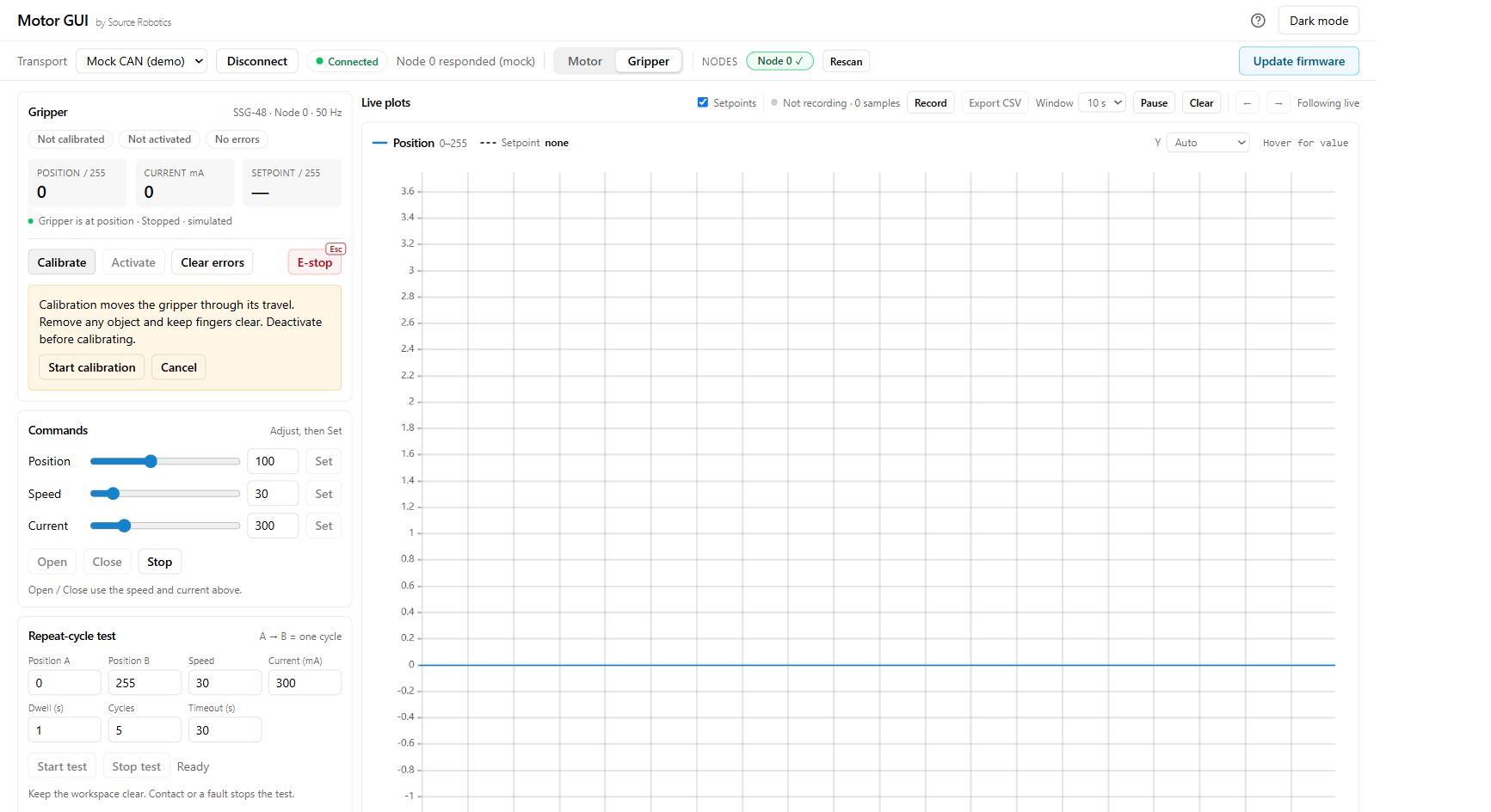
1. Gripper view: select the intended node and Gripper panel. 2. Calibration prompt: clear the stroke and confirm only when ready. 3. State: wait for Calibrated before moving. This is the SSG-48 simulation; it is not a measurement of calibration time.
What next
Calibrate, activate, move is the first session with a connected gripper.
Comments
Found a mistake on this page? Edit it on GitHub · Report it · Get help · This page as Markdown · llms.txt · The whole manual as PDF