Flashing firmware
Firmware 101 and the bootloader
Firmware 101, like every release on the firmware repository's main branch, is flashed with a programming adapter as
described here. Releases from 105 on run above a bootloader and update over UART or CAN; the current version of this
site (the version selector in the header) describes that.
You can check what is the latest firmware release in the github page of Spectral micro! To check what software release is on your driver use command #Info
Note
When flashing new firmware make sure you disconnect power connection and uart connection.
| Needed hardware | |
|---|---|
| You can change all variables using UART and CAN so flashing firmware a lot is not necessary You will usually flash it when: 1. New version of Spectral BLDC firmware is available 2. You are doing custom code development 3. You are using SimpleFOC firmware |
You will need programming adapter from here! |
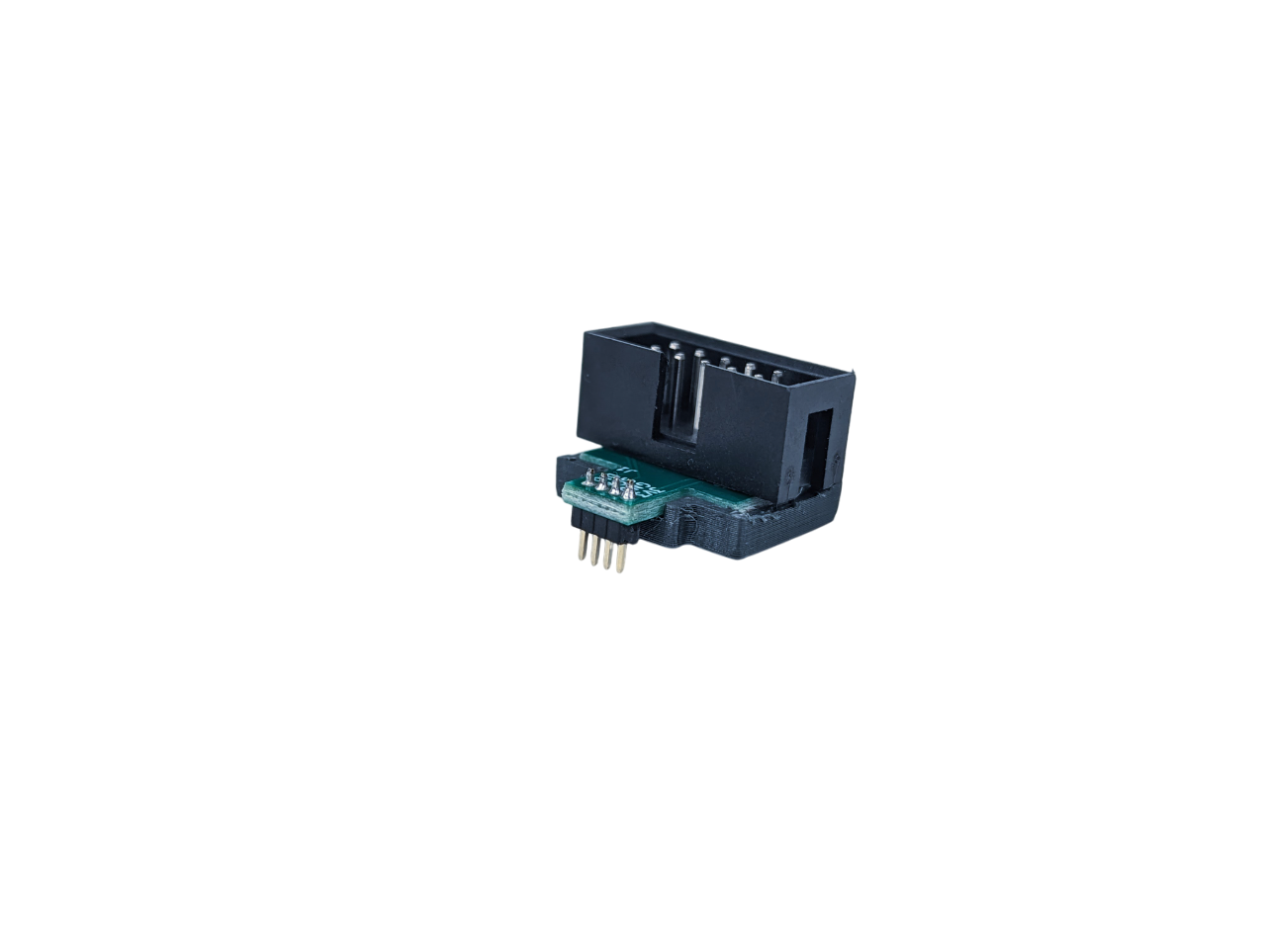
Connecting to PCB
| Step 1 | Step 2 |
|---|---|
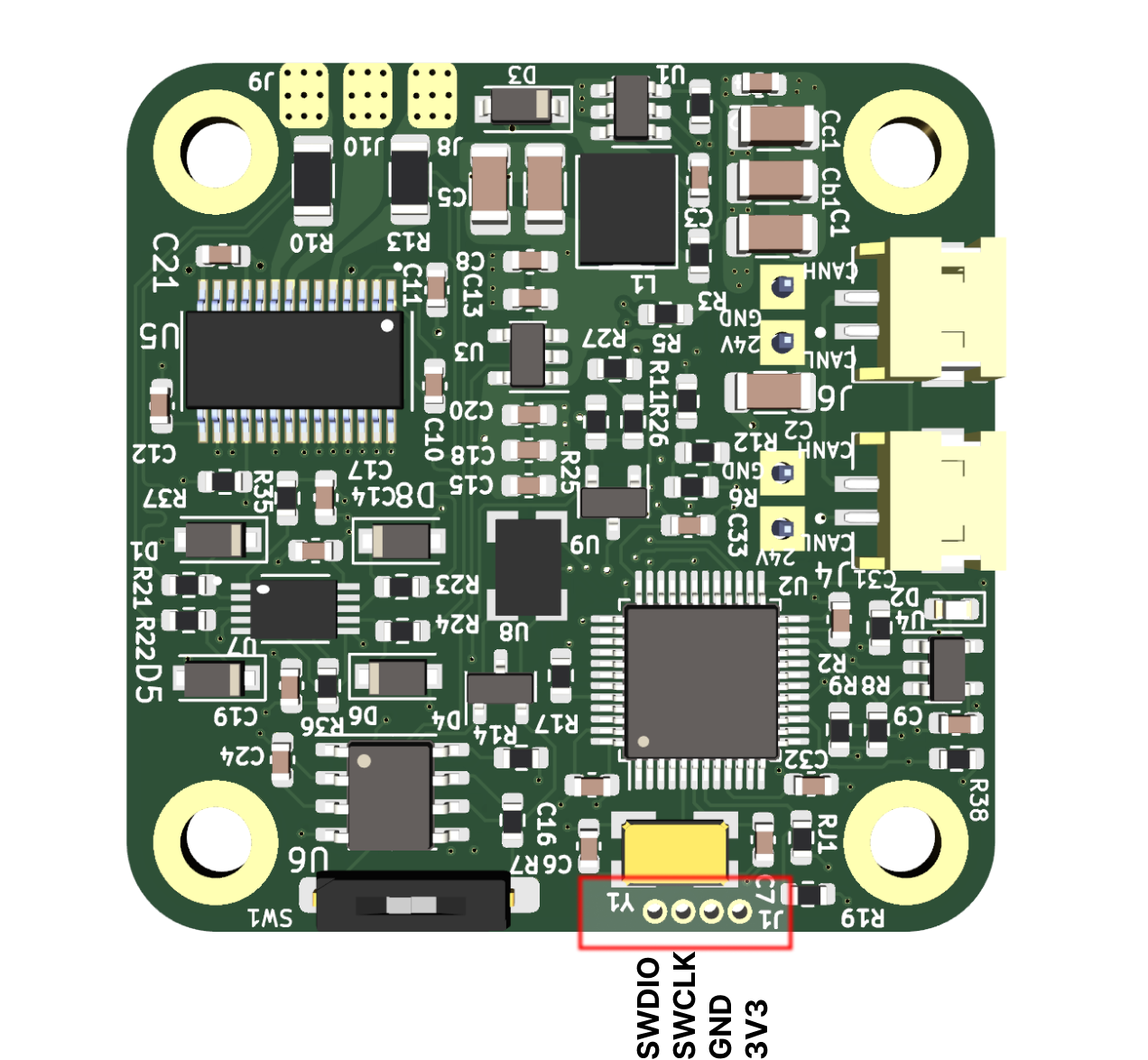
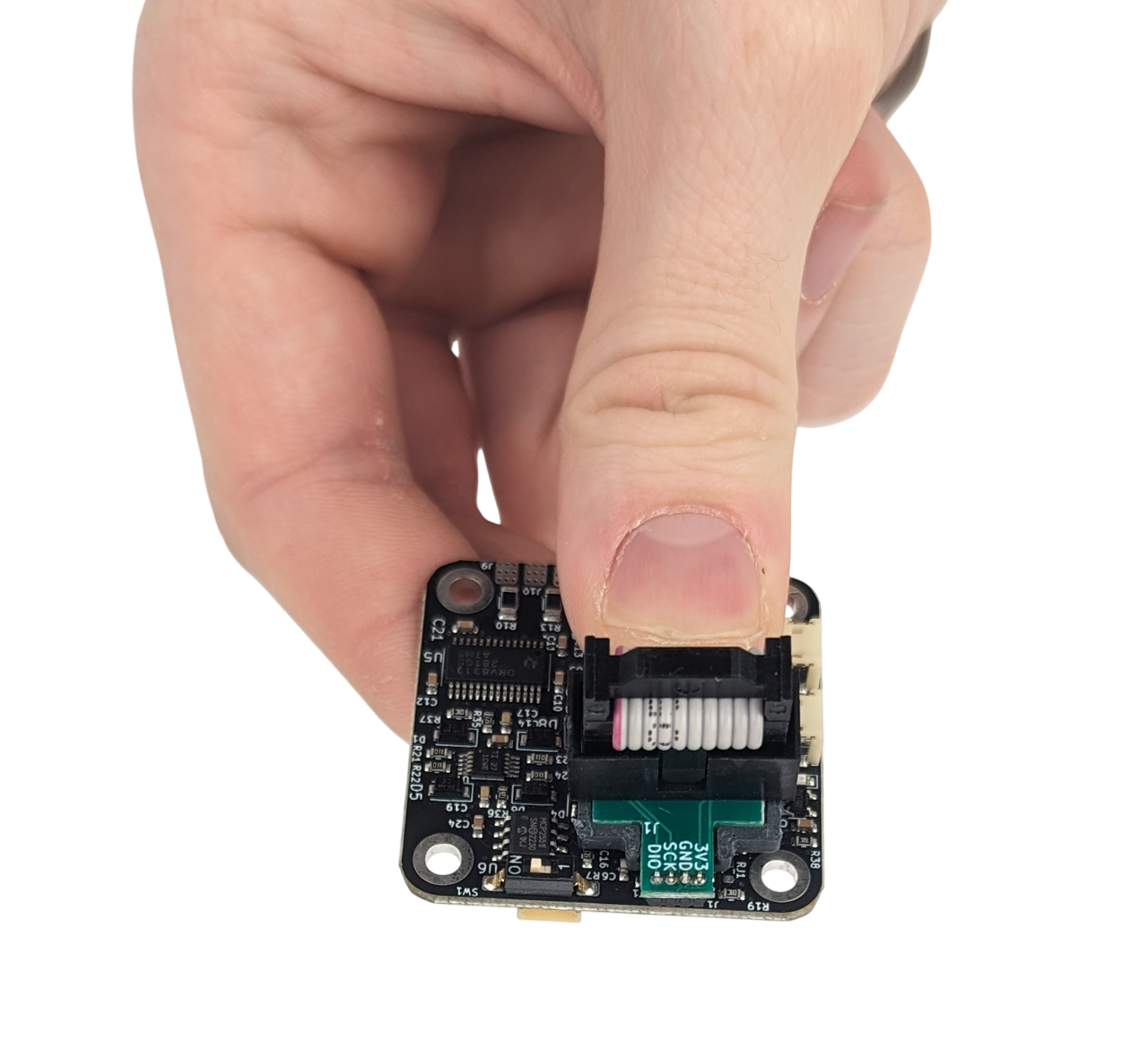
| Locate JTAG PINS | Press programming adapter like shown in the picture (apply small amount of pressure on the pins to get a good contact) |
|
|
Flashing using visual studio code
Download Visual Studio Code.
- Open Spectral BLDC firmware folder in VS code. (You need to have platformio installed)
- Press upload in VS code (Bottom left corner in VS code)

Flashing using STM32 ST-LINK Utility
Download the STM32 ST-LINK utility.
HEX and binaries
Using STM32 ST-LINK Utility you can flash only Binary or HEX files. These can be obtained from compiling source code of spectral BLDC firmware
Open STM32 ST-LINK utility Drag and drop the binary file inside.
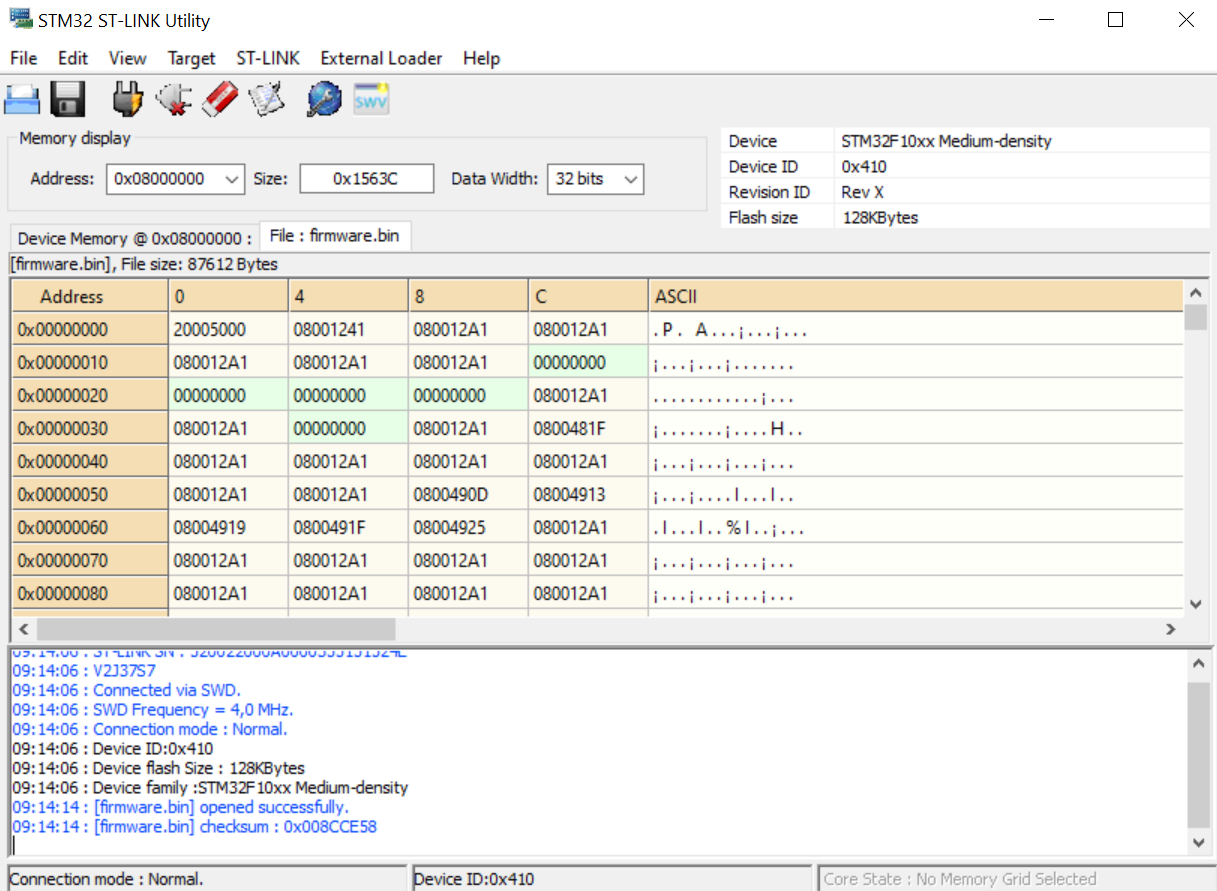
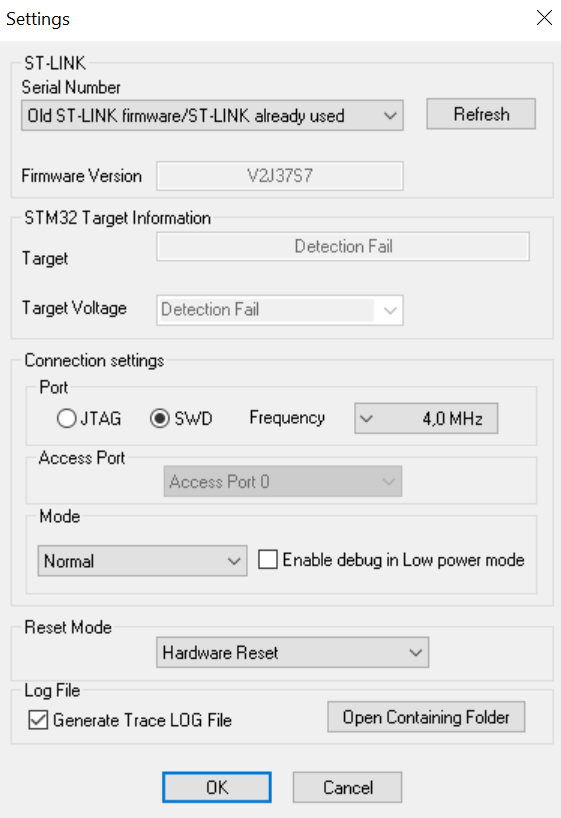
Go to Target/settings and make sure they look like this.
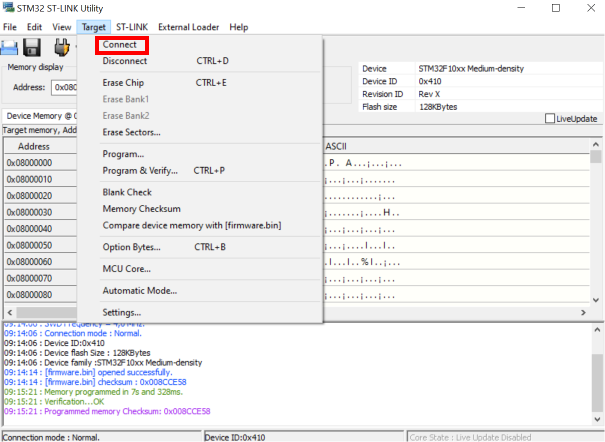
Go to Target/connect. In case you get an error try to install stlink drivers from here!
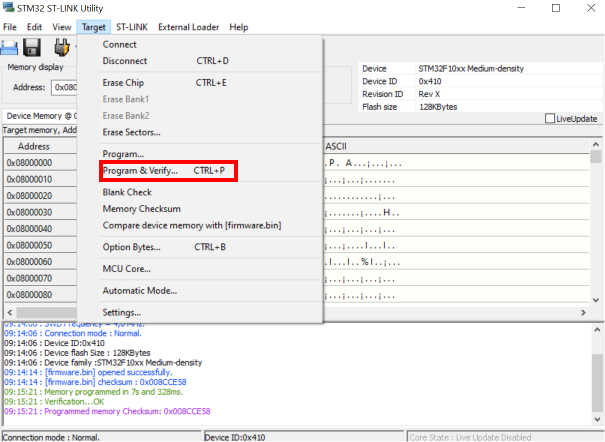
Go to Target/program and verify. You should get pink output msg like below.
Found a mistake on this page? Edit it on GitHub · Report it